

MARGAY / HELP GUIDE
It all starts with a line.
Learn to use Margay, from your first file to the tools that make repetitive work easier.
Start with the essentialsThis guide describes the Windows editor and features present in the Margay code reviewed for it. Some may not yet be in your installed version or may depend on service activation. If an option is missing, check Help → Shortcuts or the command palette, and check your version in Settings → About.
01 / GUIDE
Getting started
Open a file, write, and save. That is all you need to begin.
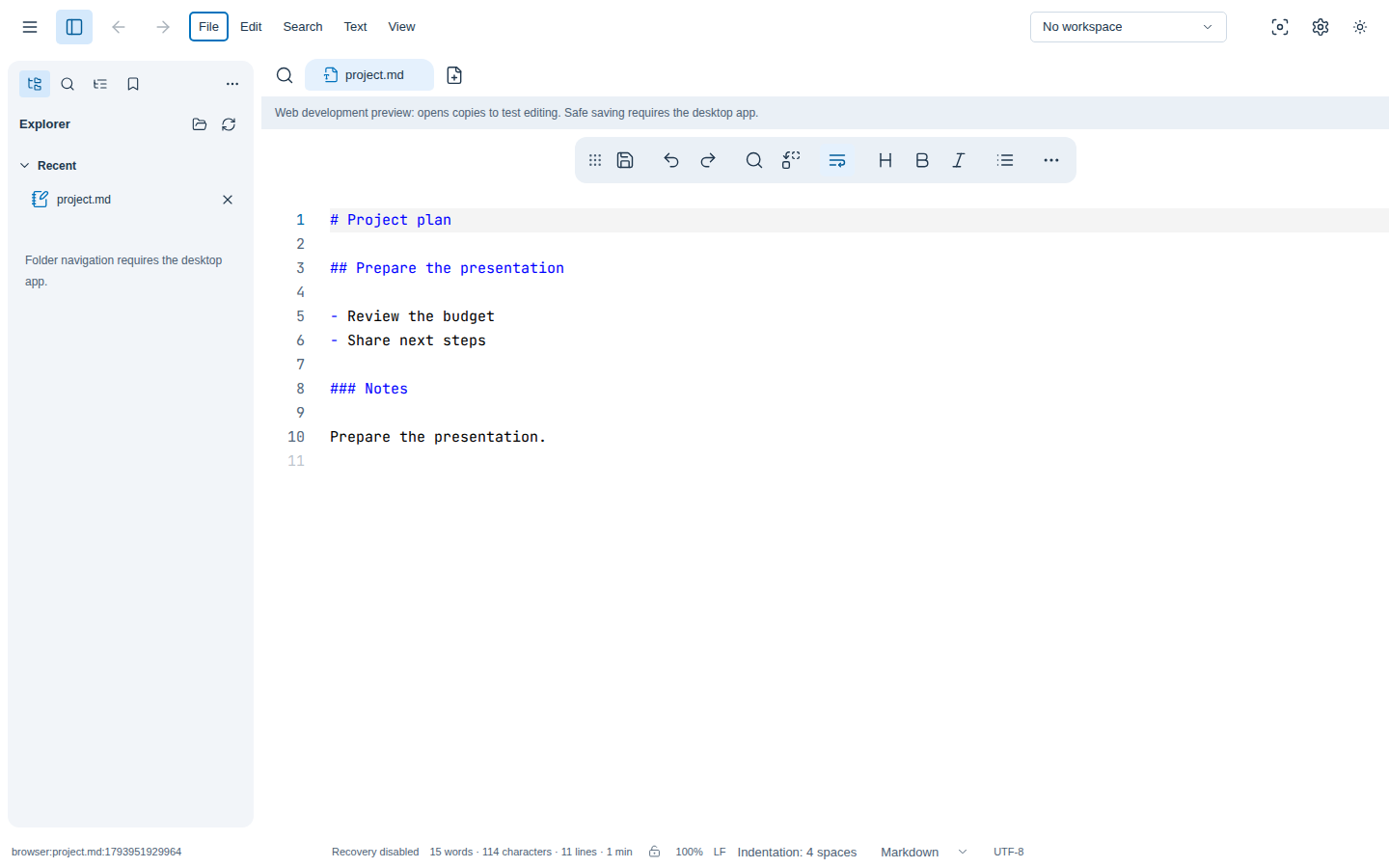
- In Windows, open Margay and choose File → Create new document or press Ctrl + N.
- For an existing file, choose File → Open… or Ctrl + O.
- Write in Code. Each open file has its own tab.
- Press Ctrl + S; for a new file, choose a name and location. A tab indicator marks unsaved changes.
Try a file called notes.md: write # My notes, save it, and switch to Document to read it formatted. Open the command palette with Ctrl + Shift + P to find actions by name.
Pin Margay in Windows. After installation, use the context menu of the desktop shortcut or find Margay in Start. Right-click the shortcut and choose Pin to Start or Pin to taskbar; you may need Show more options. Windows settings determine which actions are available. Pinning is your choice and is not performed automatically.
Test EXE without the Explorer extension
If your package is named Margay_…_x64-setup_tester.exe, it installs the same editor, independent file associations, desktop shortcut and WebView2 support, without the Windows 11 main Explorer menu extension. It does not require importing a test certificate and adds no trust automatically. Windows may still warn or block execution, including SmartScreen.
Only this test installer expires, exactly 90 days after compilation. Its UTC creation and expiry dates appear in the installer and release notes; reinstalling the same package does not restart the period. After expiry, download a newer test build to install or update. The installed editor keeps opening, recovering, exporting and saving documents; its installed uninstaller remains available through Windows Settings. The full EXE and MSIX do not have this deadline. The local-clock check does not prevent deliberate manipulation and is not copy protection.
02 / GUIDE
Files and saving
Save, Save as and Save all
Save writes the current document; Save as… chooses another name or location, and Save all goes through modified documents. Review the prompt before closing a tab with changes. Save a copy when the original is read-only or changed elsewhere. If saving fails, the draft remains available; read the message before retrying.
Encoding and line endings
Encoding controls how characters are represented; line endings such as LF and CRLF separate lines. Check them in the status bar or File information. Reopening with an encoding interprets existing bytes; saving with another creates new bytes. Make a copy if unsure. Mixed line endings or size protections can restrict editing.
Read in blocks or follow a changing file
For a large file, use File → More opening options → Open for block reading to browse portions without editing it. To watch a log, choose Open and follow file in real time… in the same menu, or open the file and choose Follow file from its tab menu. Both open the same read-only view. Pause or resume updates, set the visible limit and refresh interval (100 ms to 5 seconds); the live indicator appears on the tab. Truncation reloads the content; if the file is replaced or rotated, follow the warning and reopen it explicitly.
The main menu and command palette remain available while following a file; the content stays read-only.
03 / GUIDE
The workspace
The menus, toolbar and tabs are at the top; the document is in the centre. The side panel contains Explorer, Search, Snippets, Structure and Bookmarks, and the status bar shows document and cursor information.
Open a tool by its icon or find it in the command palette. Use Customize panel if it is hidden. Choose tools for the current session or save a startup selection in Settings; hiding the panel does not close documents.
Select or drag tabs to switch or reorder them. Ctrl + E finds open and recent documents and, with an authorised folder, file names. Use the arrows and Enter to open a result.
Drag a document tab onto another open Margay window. Wait for the destination indicator, then release to move it with its unsaved changes; press Esc before releasing to cancel. You can also move a document to a new or existing window from its tab menu. Panel visibility, toolbar position, appearance and always-on-top apply to the current window; the latest preferences are saved for future windows.
04 / GUIDE
Editing and navigation
Select text with the mouse or keyboard. Copy with Ctrl + C, paste with Ctrl + V, undo with Ctrl + Z and redo with Ctrl + Y. Use Ctrl + G to go to a line.
Language and indentation
The document type controls highlighting and can be detected or chosen. Tab width controls the visual width of a tab; spaces and a tab character \t are different content. Check the indentation setting and file before converting, especially in code.
Bookmarks and structure
Ctrl + Alt + B toggles a bookmark on the current line; find it again in Bookmarks. Structure helps navigate recognised headings and sections. Bookmarks last for the session and are not written into the file.
05 / GUIDE
Find and replace
In a document
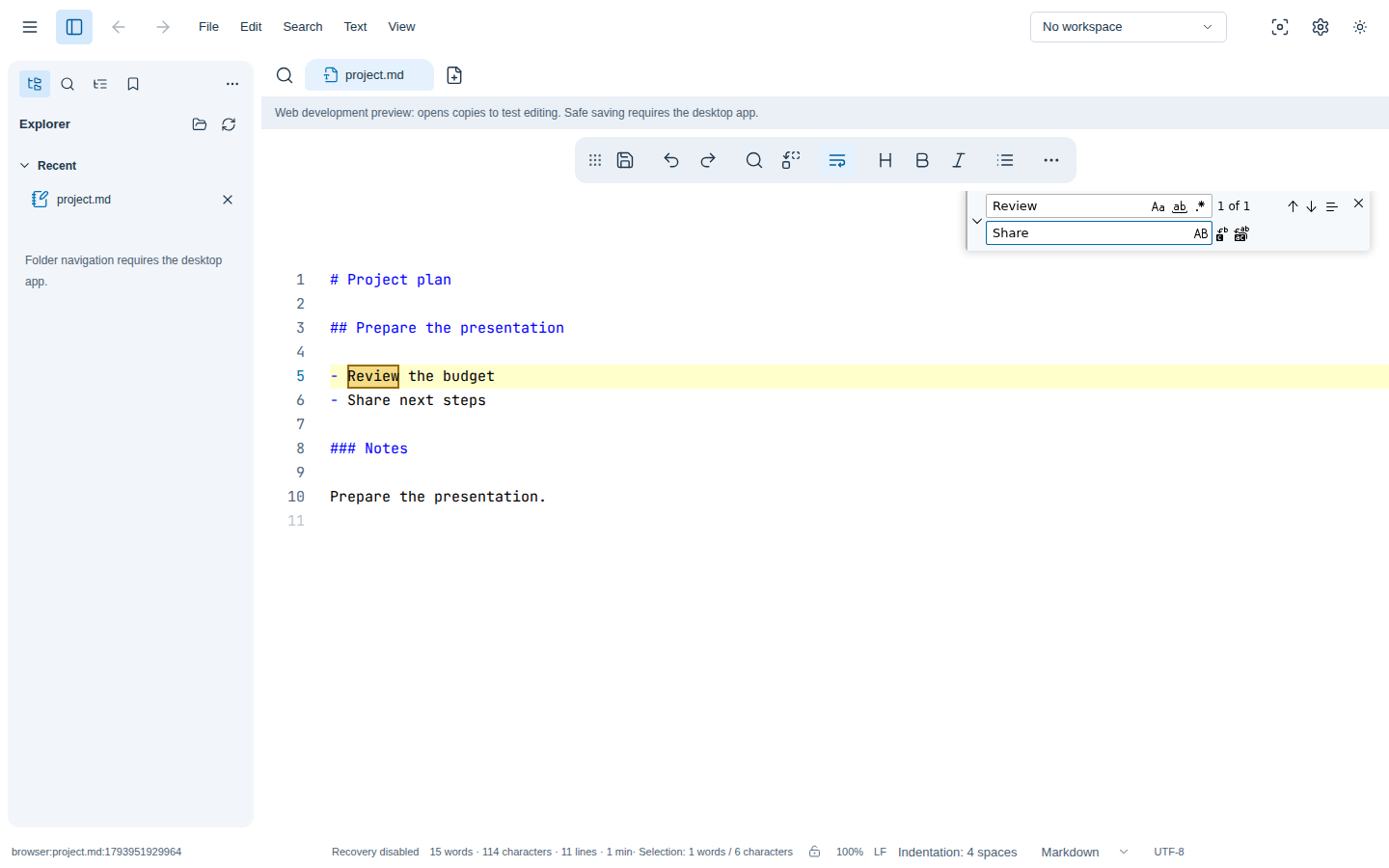
Press Ctrl + F, enter text and move between matches; Ctrl + H opens replace. Check case, whole-word and regular-expression options. Regular expressions interpret special characters; literal searches do not. In Markdown, Code searches the source and Document searches rendered text.
Across files
- Open an authorised folder in Explorer and select Search.
- Enter text and run the search; select a file and line in the results.
- To replace, review the differences and choose files and matches. Open documents become modified and need saving; closed files have safety and recovery checks.
Folder content search is literal and respects exclusions and limits. A warning can indicate partial results: narrow the folder or query. The Explorer filter searches names, not contents; folders are not indexed in the background.
06 / GUIDE
Folders and Explorer
Open a folder in Explorer to browse its tree, open files and use its menu to create or rename items, copy paths or show them in Windows. Opening a single file does not authorise its whole folder. The tree loads as needed; exclusions omit folders and a partial-results warning means items may be missing.
Workspaces
If available, File → Workspaces… saves and opens named contexts containing documents, views and folders. Switching does not delete files. Follow prompts to save or protect drafts; local paths require permission on the relevant device, and undo history is not retained across restarts.
07 / GUIDE
Split views
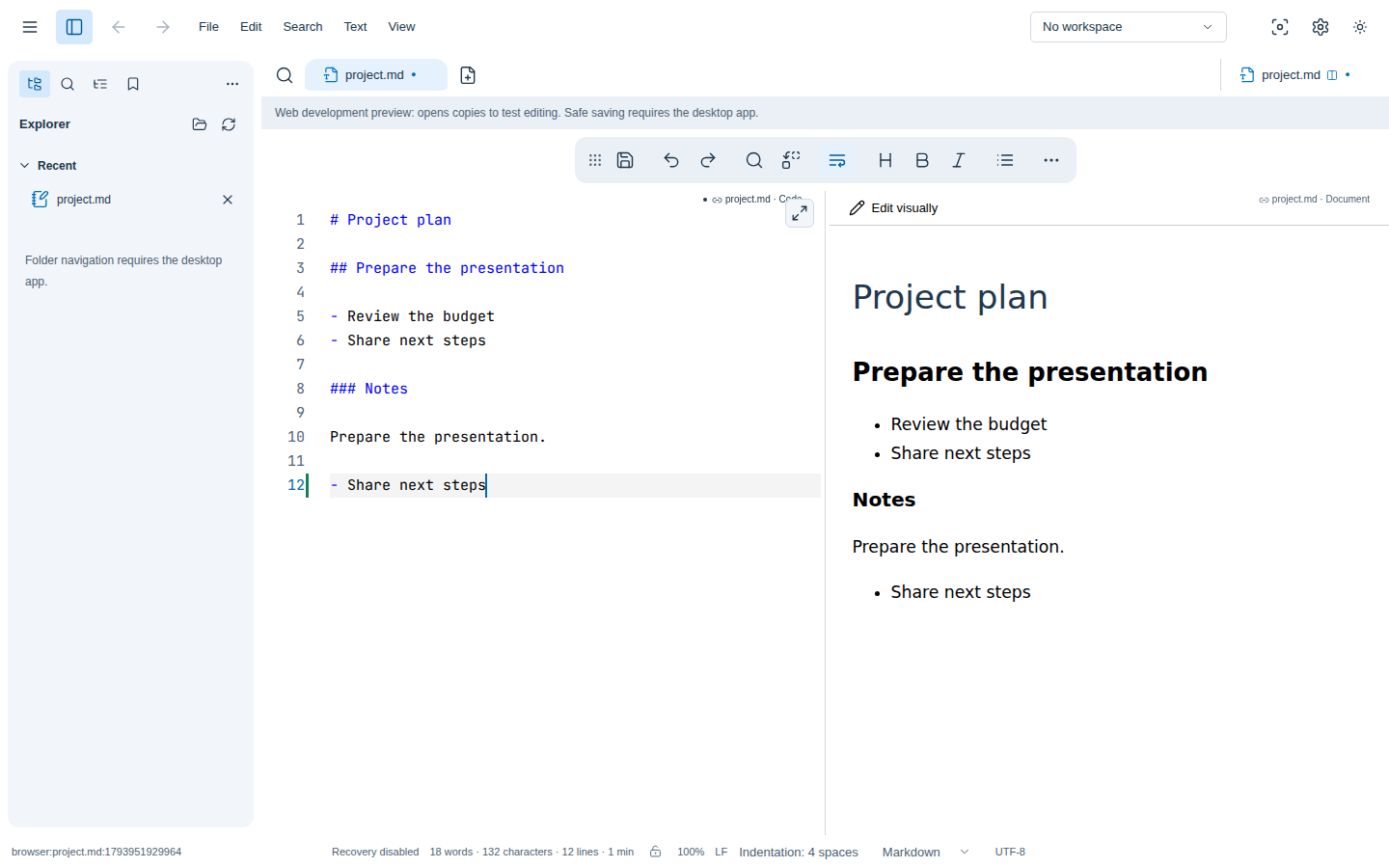
Choose View → Split editor for side-by-side or stacked views. Show different documents, two views of one document, or Code and Document for Markdown.
Views of the same document share content; cursor and scroll positions can be independent and scroll synchronisation is optional. Splitting does not create a backup or automatically compare texts.
08 / GUIDE
Compare documents
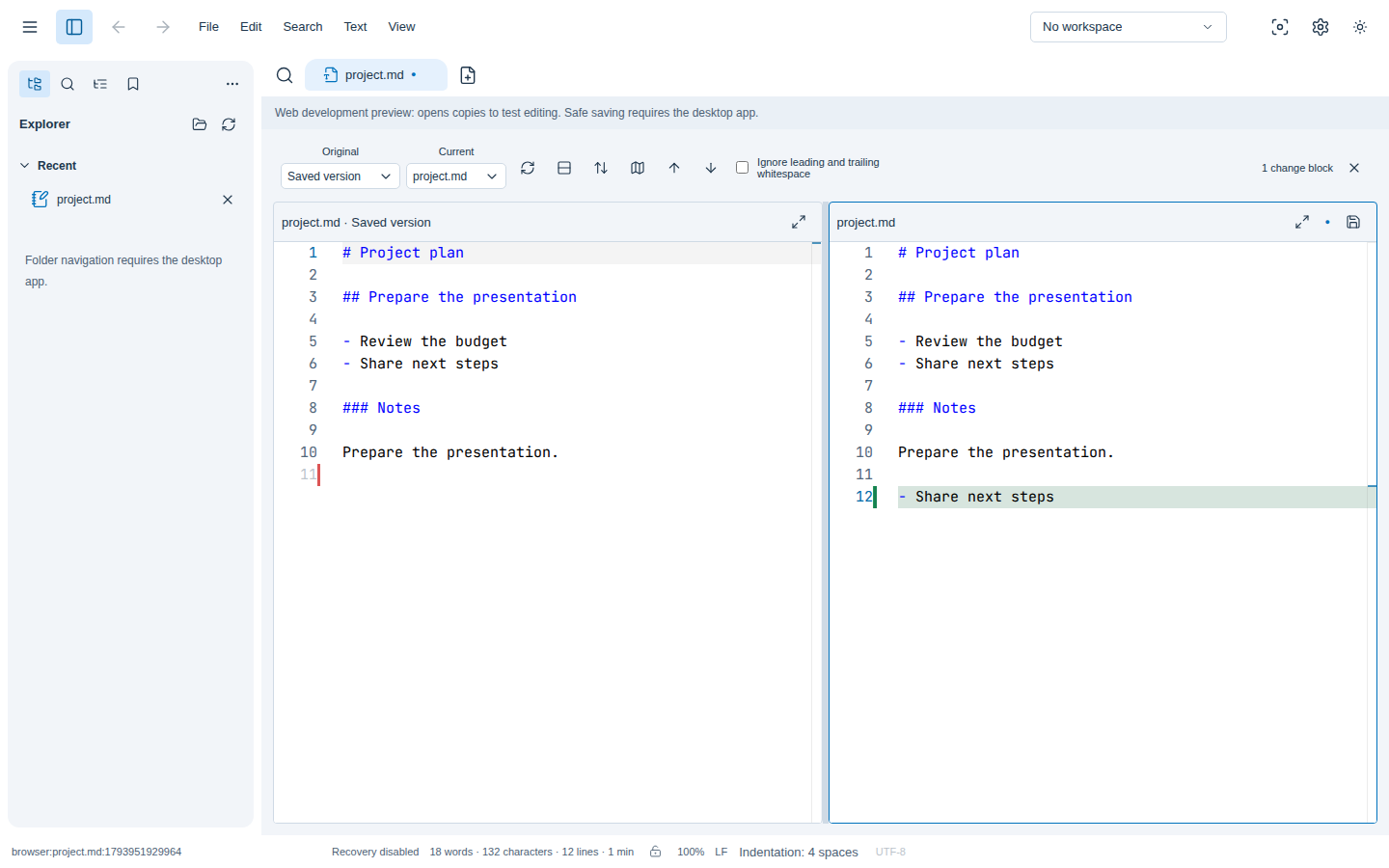
Find differences between two texts or your draft and its saved version.
- Choose View → Compare documents → Compare….
- Choose a document on each side, or Saved version as a reference; you can also open a file from the picker.
- Press Compare documents, use the arrows to navigate changes and optionally select Ignore leading and trailing whitespace.
- Edit writable sides and explicitly save the one you want; close comparison to return.
Compare visible documents compares two distinct visible files. The saved reference is read-only and a new document has no saved version. Comparison shows text differences, not encoding, BOM or LF/CRLF differences; it does not merge or overwrite files automatically.
Each side is limited to one million UTF-16 units, 20,000 lines and 20,000 characters per line. Time and highlight budgets also apply. If comparison is incomplete, narrow the texts; do not assume every difference is shown.
09 / GUIDE
File information and statistics
File information
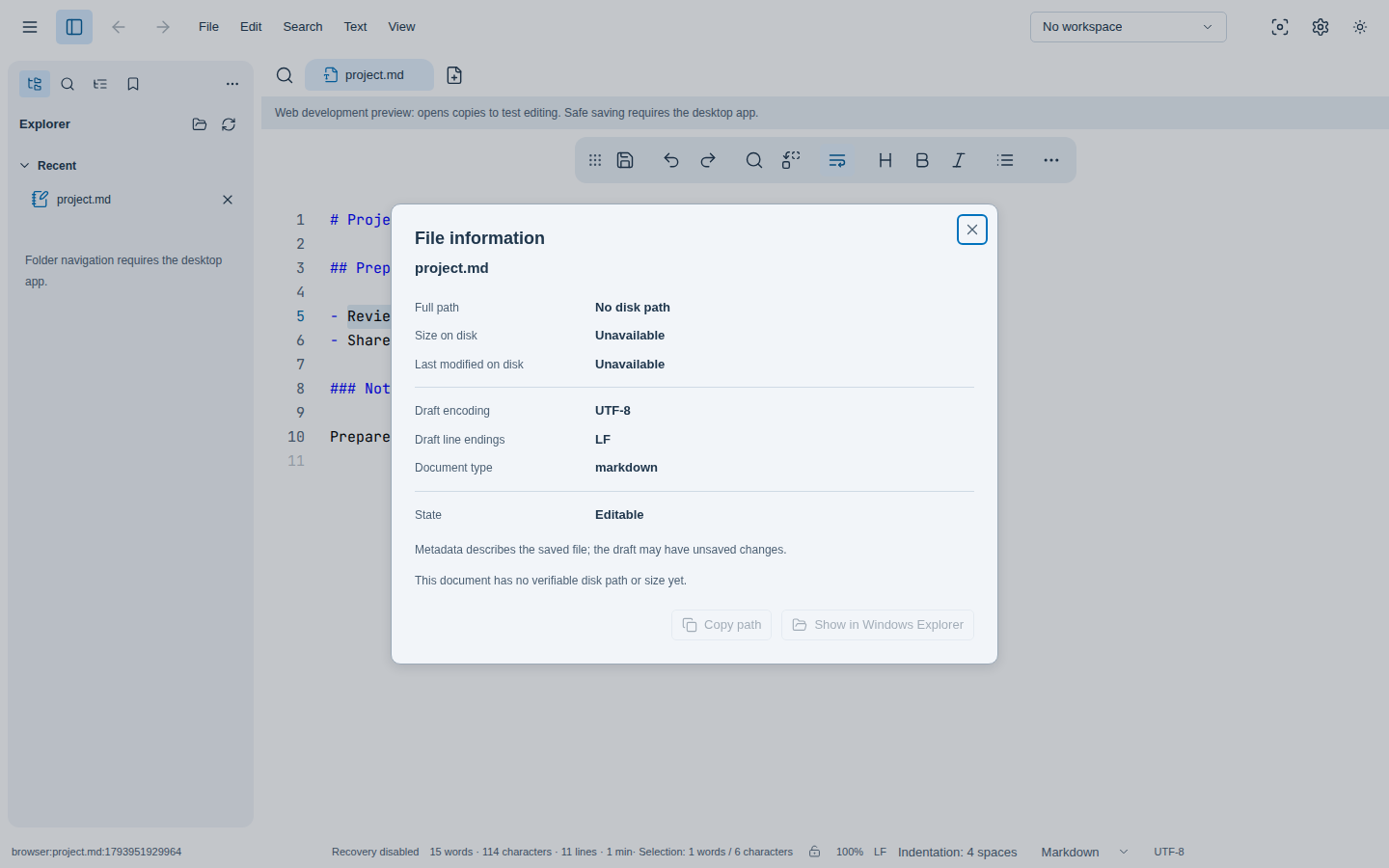
Open File → Document options → File information for the path, disk size and modification time, plus the draft's type, encoding, line endings and status. Copy the path or show the file in Windows Explorer when available.
Size and date refer to the saved file and can differ from the draft. A new file has no disk path or size until saved; Margay reports unavailable information.
Reading and writing statistics
Open statistics from the status bar for counts and reading estimates. These are guides, not certified editorial or linguistic measurements. Check whether the panel refers to the selection or the whole document.
10 / GUIDE
Writing Markdown
In Code, write Markdown such as # Heading, **bold**, lists and links; Document renders the result. Use formatting controls or both views together. Document is read-only: return to Code to edit. Structure helps navigate headings; large documents may limit some features.
Links, images and export
Local resources may require explicit folder permission. The reading view blocks remote resources and executable content; external links may require confirmation. Supported tables, formulas and diagrams can be rendered.
Use File → Export and print to create HTML, PDF or print where available. Export creates a separate output without changing the source. PDF and printing require the Windows app; review the output and resource warnings before sharing.
The document-specific controls are on the right of the toolbar. In Markdown, the view button offers Document while editing Code and Code while reading Document. Choose Code + Document for both, or the table editor to edit a Markdown table; these views are also available from View.
11 / GUIDE
CSV and tables
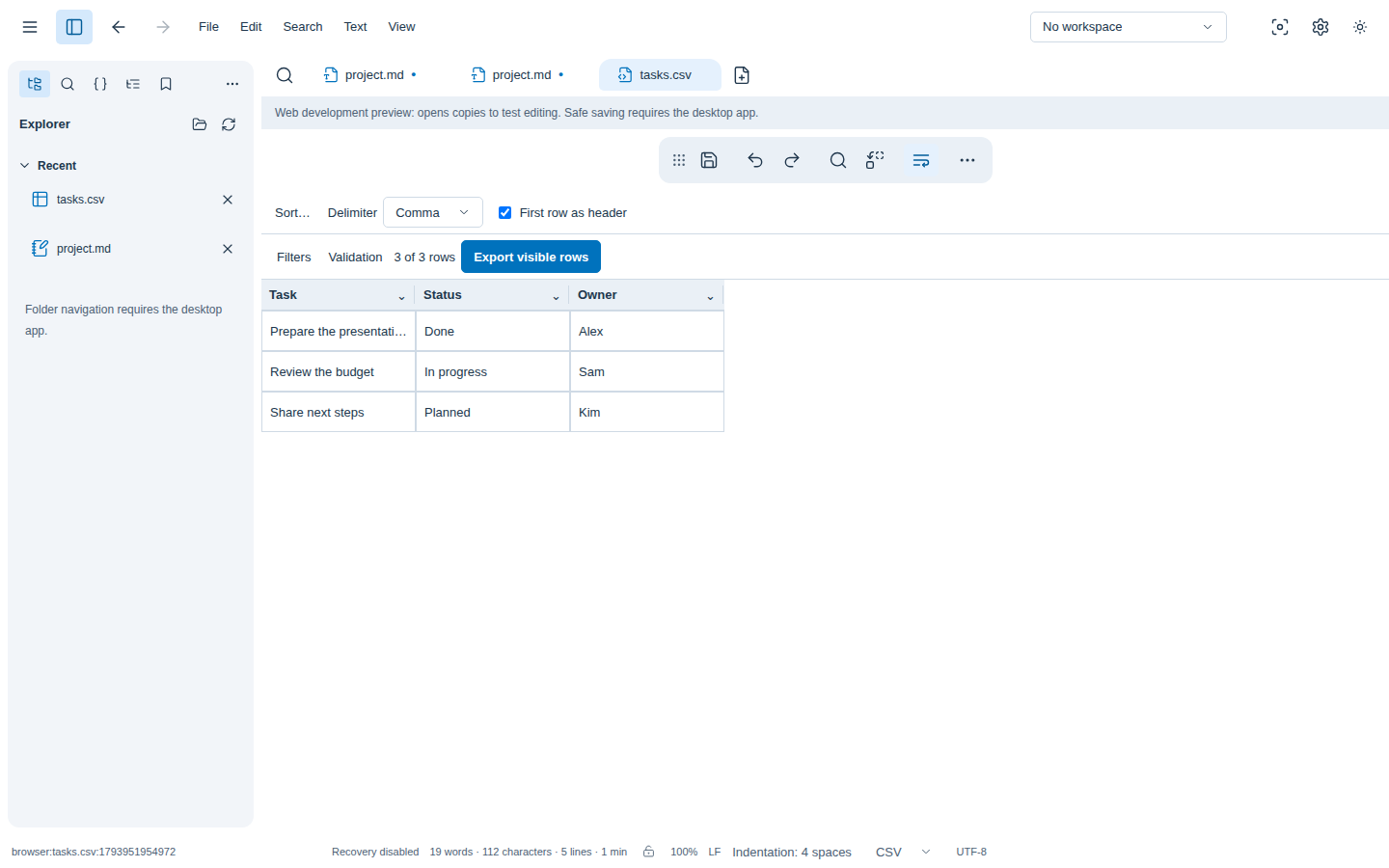
Open CSV or TSV and switch between Text and Table. Both views share the document: cell edits change the draft and must be saved. Settings can choose the initial view for future openings.
Sort and, where available, filter or validate data. Filters only change visible rows; they do not delete hidden rows. Check number and date rules before validation. Export filtered rows to create a separate file.
Table view is limited to 2 MiB of UTF-8 text, 50,000 rows, 200 columns and 500,000 cells. Quoted and multiline CSV fields must follow valid syntax; correct parsing errors in Text. Review partial results or validation issues before continuing.
In table view, use the CSV toolbar to choose the separator and whether the first row is a header. Use the filter icon on a column to add or clear filters.
Table appearance
In the CSV toolbar, toggle row and column grid lines independently. In Table highlighting, select Alternating rows, Alternating columns or both; No highlighting clears both. Hold and drag a column header: the insertion marker shows where the column will land. Reordering changes the document and can be undone; save to keep it in the file. The view button offers Text view in the table and Table view in text. Enable the pointer crosshair to locate the hovered row and column. These display options do not change cell values, filters or the saved file.
Columns, filters and validation
Hold and drag a column heading to reorder it; the insertion marker shows where it will land. This changes the CSV and can be undone. Alternating rows and columns can be highlighted together.
Filters are initially hidden. Press a column’s funnel to open Filter; a filled funnel identifies a filtered column. Close the panel to hide its controls without removing the filter. Row counts and Export visible rows remain available. To check data, close Filter and open Validation. The adjacent Columns for duplicate detection and Number and date formats buttons open compact options; choose duplicate-key columns with checkboxes, then add rules or validate all rows.
Freeze panes and row numbers
The pin button on the right of the CSV toolbar offers Top row and First column; both can be selected. For Freeze panes, select a cell, finish editing it, then choose this option to keep the visible rows above it and columns to its left in view. Uncheck it to release them. These controls only change the view.
The number strip belongs to the editor, outside the table: headers are not counted and the first data row is 1. Filters retain the CSV row numbers. Numbers are never added to the file or exported as an extra column.
12 / GUIDE
Snippets
Save frequently used text and insert it again without retyping.
Create and insert
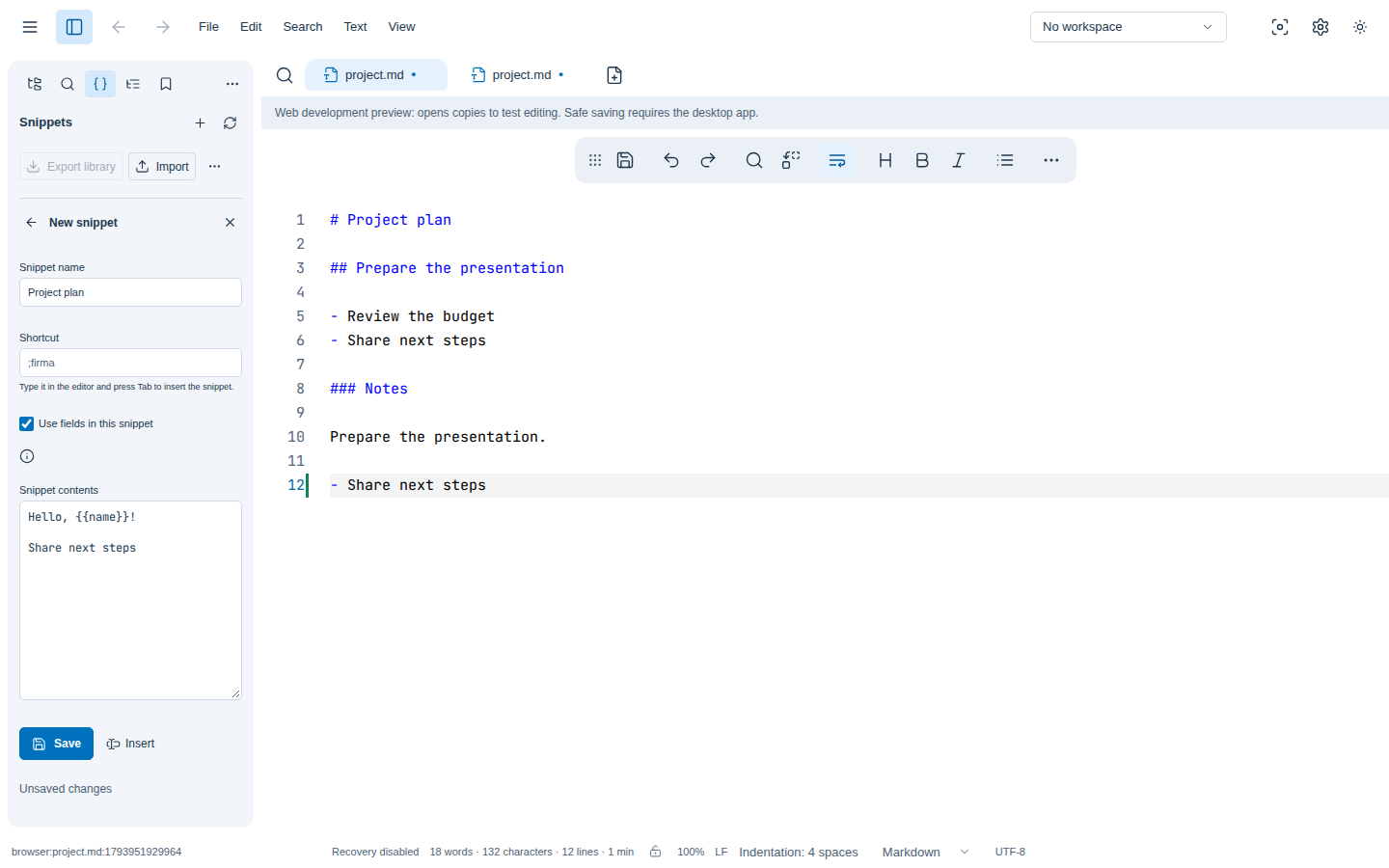
- Open Snippets and choose New snippet, or select text in Code and use Edit → Save selection as snippet.
- Enter a name and content and save. Place the cursor or select text in an editable Code view.
- Return to the panel and press Insert. The snippet replaces the selection or inserts at the cursor; Ctrl + Z undoes it.
The destination is the last editable Code view focused. Return to it if unavailable or protected. An optional abbreviation such as ;signature can be typed in the editor followed by Tab; it starts with ; and must not duplicate another abbreviation.
Fields
Enable Use fields in this snippet and write Hello, {{name}}:. Margay asks for the value on insertion; repeating a name reuses the value. Use \{{ for a literal opening. Up to 12 fields are allowed; no expressions or scripts run. Without fields enabled, text is inserted literally.
Save and transfer
Save each snippet: an unsaved draft is not recovered after a crash. The library is stored in the local profile and can be imported or exported. Review items and duplicate abbreviations before importing. Import files are limited to 8 MiB; the library supports 500 items, 100 UTF-16 units per name, 128,000 per content and one million in total.
13 / GUIDE
Document templates
A template creates a whole new document; a snippet inserts into an existing one. If available, choose File → New from template…, select a template, fill in fields and review the preview before creating.
You can save a document as a template and edit its name, description, format and fields, including defaults or required values. Creation leaves the source unchanged; save the new document to give it a destination. Structured JSON templates are validated and do not evaluate expressions.
14 / GUIDE
Transformation recipes
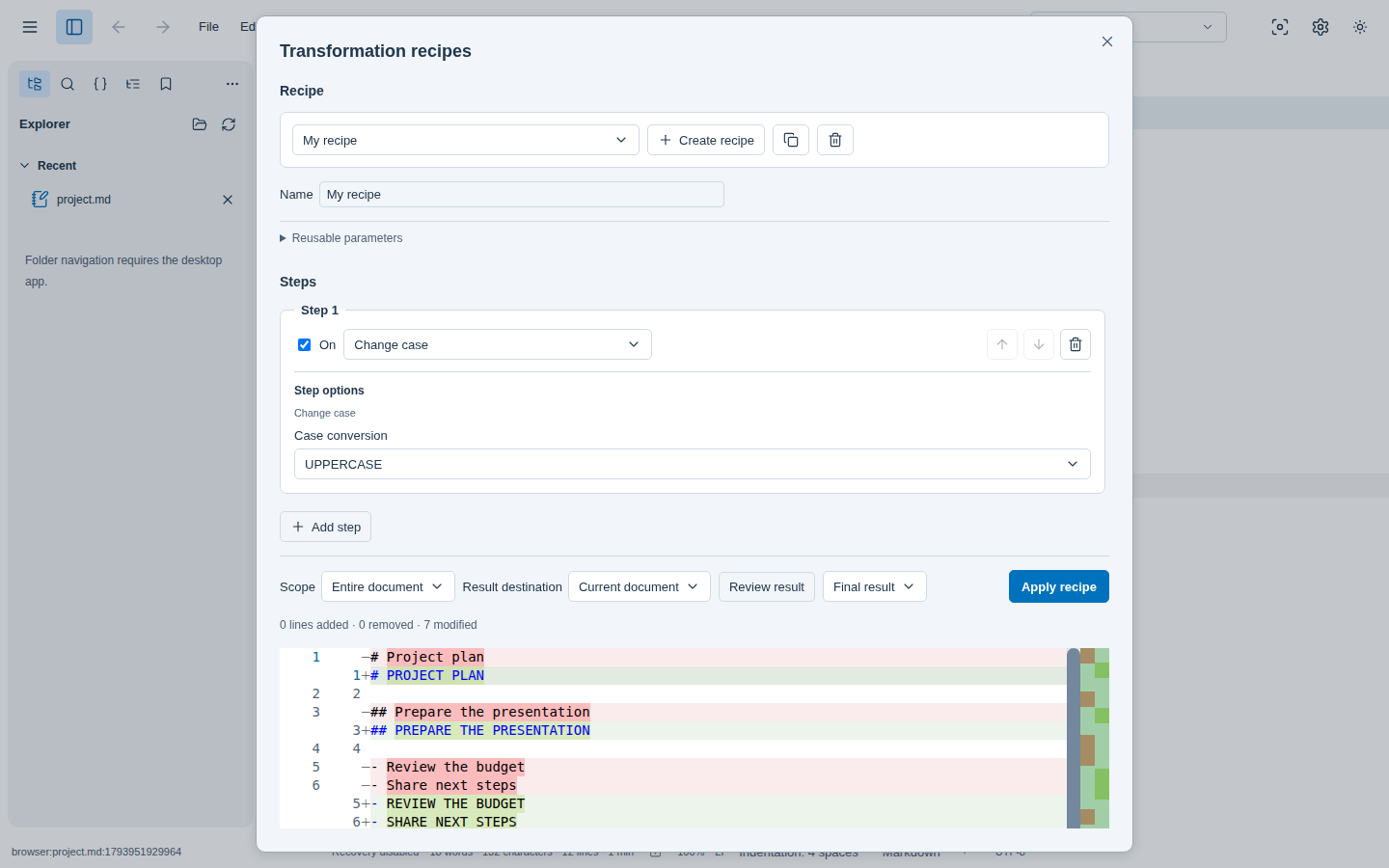
A recipe combines steps for repeated transformations, such as trimming spaces and sorting lines. Open Text → Transformation recipes…, create and name a recipe, add and order steps, configure them and choose the scope.
Generate a preview, review the differences and apply. The result is one undoable edit; save separately. Cancel without applying, and recalculate the preview if the document changes. Available steps, parameters and regular expressions depend on the version; try a copy first.
The general limit is 24 steps and 200,000 text units; individual operations such as sorting can have tighter limits. Protected documents may prevent application.
15 / GUIDE
Text tools
Edit and Text include line operations, transformations, sorting and numbering. Select text first to limit scope and review dialog options. Rectangular selection, also available with Alt + Shift + drag, works across columns. Numbering inserts a sequence at supported cursors; Extract matching lines creates a new document from literal matches without changing the original.
Tools can require editable Code and have limits. Extraction does not use regular expressions and creates nothing when there are no matches. Copy as… and Paste as… offer context-dependent conversions with preview; their 64 Ki-character limit does not apply to normal paste. Conversions may not preserve every original detail.
Formatted reading view
Choose Text → Formatting and validation → Formatted view to read a derived, read-only version using the existing formatter for the file language. The original stays unchanged. Use Apply formatting for one undoable edit, then save explicitly, or Save formatted copy for a separate file. If the source changes, refresh the preview before applying. Types without a formatter show a notice. File-size and formatter limits still apply.
Enable Local completion in Text, then use Suggest completion when you want a suggestion. Simple expressions such as 2+2 = can suggest a result. Select an expression and use Calculate selection from the text menu to review it before replacing it. On a recognised date, Adjust value opens a calendar; applying a date or calculation can be undone.
16 / GUIDE
Spell checking
- Enable spell checking from the toolbar.
- In Settings, choose a dictionary language and variant, independently of the interface language.
- In Code, open the context menu on an underlined word for suggestions, Ignore or Add to personal dictionary.
Checking is local. Replacements can be undone; ignoring lasts for the session and the personal dictionary is stored per language. This is not grammar checking. Technical content such as code, paths and link destinations is deliberately skipped. Large documents may have partial or unavailable results; check the status warning.
17 / GUIDE
Continuation and recovery
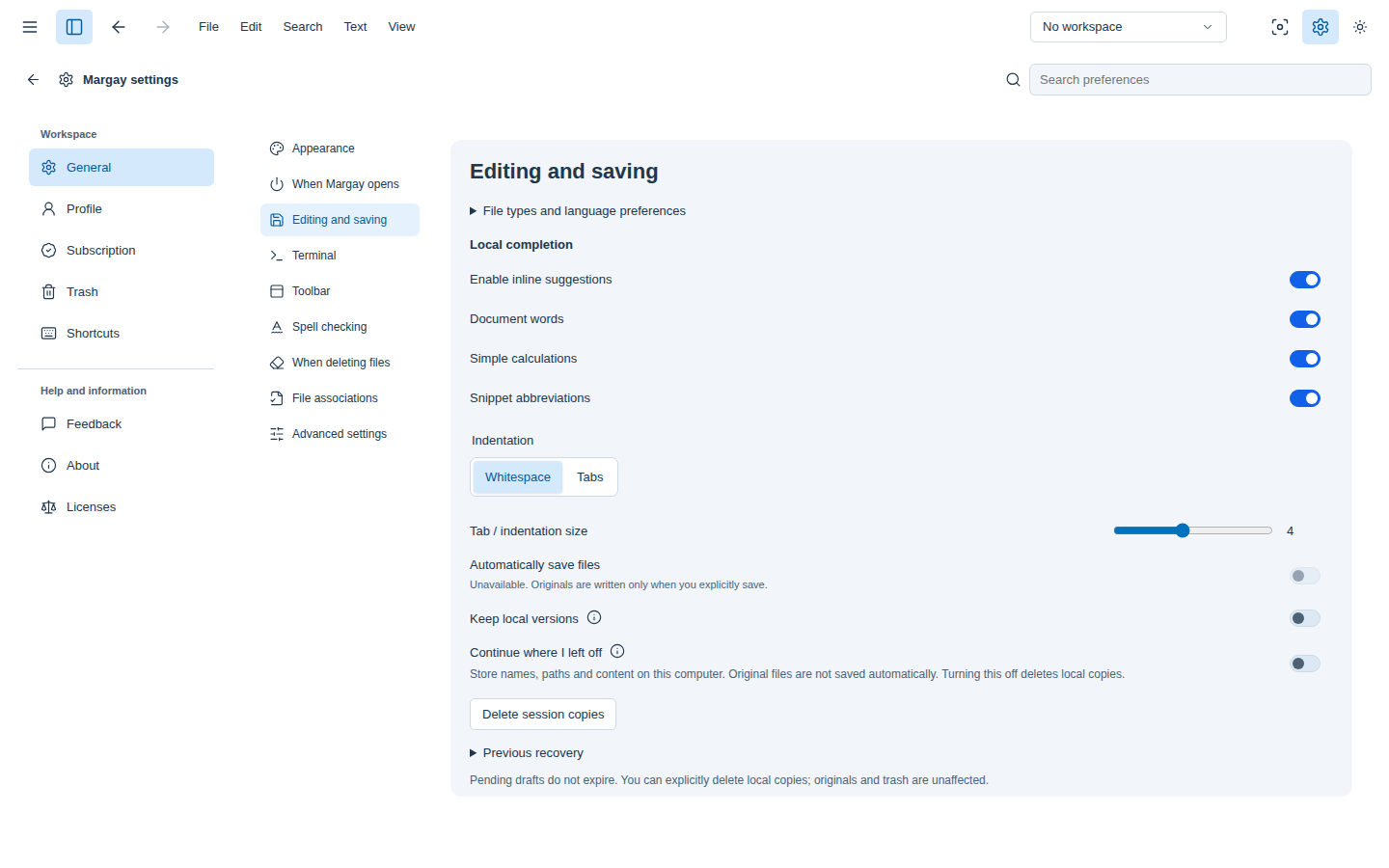
Continue where I left off optionally retains local session information and eligible drafts. Enable it in Settings, review exclusions and limits, and review the offered session before restoring or discarding it.
Recovery does not replace saving the original file or an independent backup. Private or sensitive files and items over limits can be excluded. Undo history is not restored across restarts. Save snippet changes separately; unsaved snippet drafts are not recovered after a crash.
File-specific warnings are shown only on the relevant active tab. If an original cannot be verified, retain the draft and use the offered review or locate-file controls; opening another tab does not transfer the warning to it.
18 / GUIDE
External changes
Another program, sync service or window may change an open file. Margay detects external changes and protects the draft; read the warning before reloading, comparing or saving a copy.
If Resolve conflict… is available, review your changes, the external version and the result. Decide per block or edit manually. Applying changes the draft; saving remains separate. Another external change or an unverifiable base can require another review or limit options.
If unsure, use Save as… to keep your version in another file and compare both. Do not discard a draft until you have kept what you need.
19 / GUIDE
Margay Trash
Margay Trash is independent of the Windows Recycle Bin. Review and restore eligible items from Settings without overwriting an existing file. There is no automatic emptying; check warnings for unsupported locations or volumes.
It is limited to supported local files on the same NTFS volume and is not a general folder or location trash. Settings can select permanent deletion instead: it requires confirmation and cannot be undone. A failed trash move never silently falls back to permanent deletion.
For the regular Windows installation, Margay stores the trash in %LOCALAPPDATA%\ActuallyBetter\Margay\Trash. Packaged installations can use their own data location.
20 / GUIDE
Terminal
A terminal runs system commands in the chosen working context. In Settings → Terminal, choose the available internal or external terminal; Ctrl + Alt + J opens the configured option.
The Windows internal terminal supports cmd or Windows PowerShell. Hiding it keeps the session; closing asks for confirmation. Commands can create, change or delete files according to their permissions, so check the directory and command. External terminals depend on their installation and configuration.
21 / GUIDE
Account and connected files
Some versions include account, profile and file connections. Availability depends on the build, configuration and activation of the service and provider. Follow prompts to sign in or grant access; if unavailable, use the local workflow your installation permits.
Profile preferences and document contents are different: signing in does not necessarily back up all files. Connections need permission and network access; check each provider's status and keep independent copies of important data.
22 / GUIDE
Settings and shortcuts
Open Settings to adjust appearance, fonts, panel, editor behaviour, spelling and terminal. Changing a preference does not necessarily change saved files; some options apply to later openings or need applying to the session.
Help → Shortcuts lists combinations and their contexts. If a shortcut does not work, check the active view. The command palette opens with Ctrl + Shift + P.
Ctrl + N: new · Ctrl + O: open · Ctrl + S: save · Ctrl + Shift + S: save as · Ctrl + F: find · Ctrl + H: replace · Ctrl + E: quick access · Ctrl + G: go to line.
Shortcut actions are grouped into File, Edit, Search, Text, View, Markdown and Application. Expand a group or search across all actions to edit a shortcut. In toolbar customisation, browse menu groups or search for a command; only the selected group or search results are listed.
Most defaults now use one combination with Ctrl + Alt, Shift + Alt, Ctrl + Shift or all three modifiers. Version 0.17.3 replaces 93 two-step shortcuts. For example, Save all is Ctrl + Alt + S, Shortcuts is Ctrl + Alt + K, and Markdown H1–H6 use Ctrl + Alt + 1…6. Four sequences remain for Back/Forward and the native Fold/Unfold all pair. Your custom shortcuts take priority; consult the editable list for the active assignment.
23 / GUIDE
Frequently asked questions
Why can't I edit?
Check that Code is active and the document is not locked. Read-only files, large files or mixed line endings can activate protections; read the warning and consider saving a copy.
Why can't I find a command?
Search the palette and check the installed version, active view and compatible document. Some actions require a selection, two documents or an authorised folder.
Does recovery save my file?
No. Recovery stores eligible local session copies. Use Save to write the file and keep independent backups.
Why is a Markdown image missing?
Check its path and authorise the resources folder if prompted. Remote resources and executable content are restricted in the reading view.
How do I report a problem?
Open Settings → Feedback and follow the available flow. Describe the steps, message and version; avoid including private content you do not wish to share.